

A local-drive scan is useful when you can explain what it checked and how it handled file contents. Personal data can sit in many endpoint folders, making manual searches difficult to repeat or document. To scan local drives for GDPR, define the scope and keep evidence without exposing raw files.
A malware scan and a data discovery scan answer different questions. Antivirus looks for malicious software. Data discovery identifies and maps files that may contain personal data. EmberHound Discover processes scans locally on endpoints. Masked previews and salted SHA-256 fingerprints support review without displaying raw file contents, and audit logging records activity for evidence review.
Start by listing the endpoints in scope, then name the local folders and drive paths to check. This article explains how to record what the scan covered, limit access to raw content when reviewing findings, and distinguish discovery results from malware alerts.
Key Takeaways
- Set a clear purpose for a local-drive review, such as preparing for a migration, audit, or data review.
- Before you scan local drives for GDPR, list the endpoints and file locations included in the review.
- Use discovery findings to locate where personal data may be stored, then review and record results against the agreed scope.
- Before reviewing findings, understand how the scanning tool processes files, what its previews reveal, and what access records it keeps.
- EmberHound Discover maps personal data on endpoints. Local processing and evidence controls help limit exposure to raw file contents.
Why scan local drives for GDPR personal data?
Personal data can remain on an endpoint after the work that created it is finished. A local-drive discovery scan locates and maps files that match its personal-data detection criteria. It gives the team a view of where potential matches sit across the devices in scope, so reviewers can decide what needs closer examination. To scan local drives for GDPR, begin with the review you need to support, then define the endpoints and locations to include.
A migration can prompt this work when files need to move from staff computers to a new storage environment. A scan can help identify files for review before the move, rather than relying on staff to remember every folder. An audit or internal data review may also need a record of where relevant files were found. The scan points reviewers to locations; it does not decide what to migrate, retain, or remove.
Keep the purpose clear. Antivirus scanning looks for malicious software. Document capture turns paper documents into digital files or routes documents to a destination. Data discovery locates files that match defined criteria. Each addresses a different question. Discovery results can inform a GDPR review, but they do not assess the lawful basis for processing or establish that an organisation complies with GDPR. For an overview of the regulation, see the General Data Protection Regulation (GDPR).
That distinction matters during a migration. A file match tells the team where to look. A person must assess the file's context and decide what action is appropriate. Treat the scan result as evidence for that review, not as a legal conclusion.
What counts as a local-drive scan?
An endpoint is an individual computer or device included in the scan scope. A local-drive scan covers files stored on those devices. Mailboxes, shared drives, and network locations are separate sources, so scope them separately rather than assuming an endpoint scan includes them. Before scanning, record the devices and local locations included. This makes the boundaries of the review clear.
A clear boundary also makes gaps easier to spot. If a team scans laptops but not a shared drive, the results describe only the laptops included. They say nothing about files elsewhere. A written scope helps reviewers understand what was checked and what remains outside the scan.
What can a discovery result tell you?
A result can identify a file that matches the scan's personal-data criteria and map its location on an included endpoint. Reviewers can use that location to investigate where personal data may be stored and decide whether the file needs further examination. Detection criteria determine what the scan can identify, so read results within the limits of those criteria.
A location finding does not explain why the data is present, how it is used, or whether that use complies with GDPR. Those questions require review of the relevant context. The GDPR data discovery guide provides further context on using discovery findings as part of a data review.
How local-drive scanning finds personal data in endpoint files
Discovery scanning applies defined criteria to files on the endpoints in scope. It identifies potential matches and maps each finding to a file location, giving reviewers a starting point for checking where personal data may be stored. Results depend on the scope and the files the scan can examine. They cannot describe files or locations that were excluded.
The criteria matter. A scan can identify only the types of content its detection rules are designed to find. Before you scan local drives for GDPR, decide which criteria apply to the review and how the team will handle a match. The ICO's definition of personal data under GDPR can help frame that review. Don't treat a match as a final assessment: the file's context still matters.
File type can affect whether a scanning process can read a file. Location matters too. A local folder on an included endpoint differs from a mapped drive or shared network location. Name the devices and folders being examined, and record exclusions. That makes results easier to interpret and helps reviewers see where the scan provides no coverage.
Discovery scanning versus antivirus scanning
Antivirus scanning focuses on detecting malicious software. Microsoft Defender Antivirus is one example of a tool used for that purpose. Data discovery has a different aim: it finds files that match personal-data criteria and maps their locations. Antivirus results don't show where personal data is stored or determine its regulatory status. Discovery results don't replace malware checks. Keep each result tied to the question its scan was designed to answer.
Which endpoint locations belong in scope?
List local folders separately from mapped drives and shared network locations. A mapped drive may appear on a user's computer, but the files it points to are stored elsewhere. Treating it as local can give a misleading picture of coverage. An agreed device and file scope makes clear which results relate to endpoint storage. A broader network search to locate personal data across your network is a separate task.
For each endpoint, record the locations included and any exclusions, such as folders outside the review's purpose. Then interpret findings against that record. A result on an included laptop gives the reviewer a location to investigate. If a shared location was outside scope, the endpoint scan says nothing about its contents. This distinction helps teams plan further review without treating a partial scan as a complete view.
EmberHound Discover maps personal data found on endpoints, with scan processing performed locally. Begin a scoped discovery review with the Start free GDPR scan.
How to assess scan privacy and GDPR evidence
Before reviewing scan results, decide what information a reviewer needs and who should be able to see it. Assess where processing takes place, whether file contents are transferred, what a preview reveals, and what activity records are available. These checks help you understand how the discovery process fits your organisation's privacy controls. They don't determine whether a particular use of personal data complies with GDPR.
- Processing location: Where does scan processing take place?
- File transfer: Are raw file contents transferred during the scan?
- Preview content: What can a reviewer see when examining a finding?
- Activity records: What information is available about access to findings?
These questions can help teams apply GDPR principles and data protection to the practical handling of scan results. Record the answers as part of your review, then assess whether the process fits your organisation's access controls and evidence needs.
How local processing changes the privacy discussion
Processing on an endpoint and transferring raw files elsewhere are different data-handling arrangements. Establish which applies to the tool you are assessing, and document what information leaves the device, if any. EmberHound processes scans locally and does not access the file system directly. Include this in your technical review alongside the scan's purpose and scope.
EmberHound's security and trust information can form part of that review. TLS 1.3 is used for data in transit, and AES-256 encryption is used for data at rest.
What audit-ready evidence can contain
A useful evidence record gives a reviewer enough context to understand what was examined and what happened next. Include the review purpose, the agreed scope, relevant finding references, and the decision or follow-up assigned by a person. Keep the record focused. When a reference to a finding is enough, avoid copying raw file contents into notes.
Evidence supports an internal review; it does not make a legal assessment on your behalf. A reviewer still needs to consider the circumstances in which personal data is held and used. Keep the scan record useful without treating technical results as a conclusion about GDPR compliance.
A practical workflow for scanning local drives for GDPR
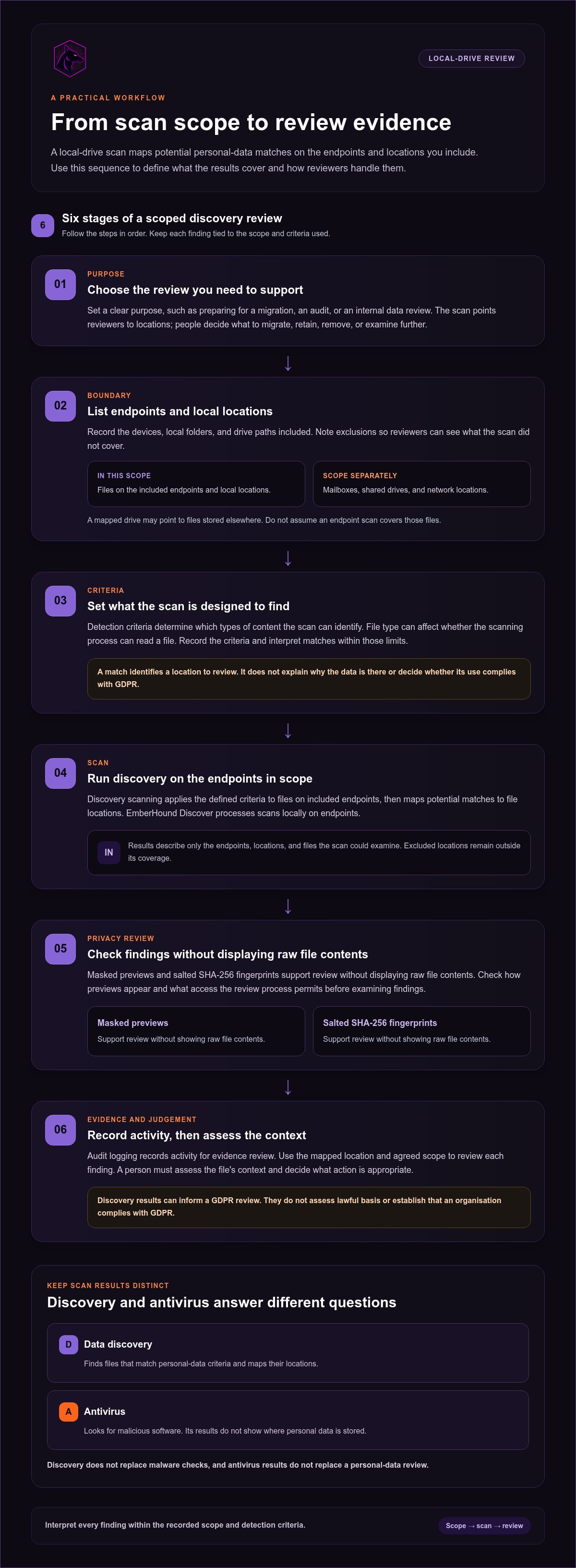
A repeatable process makes it easier to see what a scan covered and what needs human review. Before you scan local drives for GDPR, agree the purpose and scope. Keep a record of those decisions with the findings so another reviewer can understand the results later.
Set a clear scan scope
List the endpoints and local folders relevant to the review. Separate local storage from shared network locations and mailbox data. External hard drives are a separate source; EmberHound provides hard-drive scanning as an add-on. Image OCR is another distinct capability for detecting data in images and scanned documents, so include it only when it is part of the defined scope.
- Define the purpose. State what prompted the scan, such as a planned migration, audit, or internal data review. Write down the question the team needs the findings to help answer. A specific purpose keeps the review focused and gives reviewers a basis for deciding which results need follow-up.
- Set the scope. Record the endpoints to include and the local folders on each device. Note exclusions, too. Identify shared drives, mapped network locations, mailboxes, external drives, and image OCR separately rather than treating them as part of the local-drive scan. This prevents the results from being mistaken for broader coverage.
- Run the scan. Apply the agreed discovery criteria to the devices and locations in scope. Keep a record of the scan and the scope it used. If a device or folder could not be included, record that gap rather than assuming it was checked.
- Review findings. Triage matches for human review based on the project purpose and the information available about each result. For a migration, a file in a folder scheduled to move may need review before transfer. A match prompts assessment; it is not a risk score or a decision about GDPR status. Don't invent severity labels or deadlines that your process has not defined.
- Record evidence. Capture the scope, scan details, relevant file locations, and follow-up decisions. Use masked previews and salted fingerprints where available to support review without displaying raw file content. Make clear what was found and what action a person took.
Review and record findings
Keep the evidence proportionate to the task. A useful record lets a colleague trace a finding to the endpoint and location, understand why it was reviewed, and see the follow-up decision. Masked previews and fingerprints can support that process, but they don't replace human judgement or establish compliance. For wider audit preparation, connect scan records with the organisation's other review documentation.
Start a scoped endpoint discovery review with EmberHound Discover.
Start a local-drive GDPR scan with EmberHound Discover
EmberHound Discover is the endpoint-scanning track for GDPR data discovery. If you're assessing GDPR data discovery software, match the scan to a defined review task. A migration review and a general inventory may call for different decisions about which findings need attention. Keep the purpose clear so the team can judge whether the results answer its question.
What to expect from EmberHound Discover
Discover maps endpoint findings for review. Your team decides how each result relates to its work and what follow-up is appropriate. The scan supports discovery; people assess findings in context.
The usage-based model lets organisations pay for what they use, with no mandatory contracts. Teams can start with a defined discovery task and decide on next steps based on what they learn.
Choose a low-friction next step
Set the review purpose, then choose a starting scope your team can manage. Make the first task specific enough for reviewers to assess whether the findings answer the question they set. Start with a free GDPR scan. Results can inform your review, but they don't determine GDPR compliance.
Begin with the review question your team needs to answer, then use the scan to locate relevant endpoint data.
Make endpoint discovery part of your next review
Give scan findings a clear place in your data-review work. Assign responsibility for triaging matches, record decisions and open questions, and revisit the scope when endpoint use changes. This links discovery to the work that follows, whether the trigger is a migration or an internal review.
If you need to scan local drives for GDPR, begin with a defined group of endpoints and a clear review question. Use the findings to decide where human attention is needed. Record unresolved issues and assign follow-up responsibility. Keep the scan's boundaries visible so colleagues can understand what the results cover and where further discovery may be needed.
A first scan can give your team a focused starting point. Use what it finds to shape the next review and make endpoint discovery a repeatable part of your process.
Start with a defined scope and a manageable review using EmberHound Discover.
Frequently Asked Questions
Can I scan local drives for GDPR personal data without uploading files?
Yes. EmberHound processes scans locally on the endpoint and does not exfiltrate files. When assessing any scanning process, check what information it transmits, such as finding records or operational logs, and where that information is stored. Document the data flow as part of your security review rather than relying on the phrase "local scan" alone.
What is the difference between a GDPR data discovery scan and an antivirus scan?
The scans support different work queues. A discovery result can go to the team responsible for reviewing personal-data locations, while an antivirus alert belongs with the team handling malware. Agree who owns each type of result before a scan begins. That way, a clean malware report isn't mistaken for a data inventory, and a discovery match reaches someone who can assess its context.
How do I scan a computer for personal data before migrating its files?
Use the findings to review the planned migration set. For each relevant match, confirm whether the file is due to move, identify who can advise on its handling, and record the agreed action. Compare unresolved matches with the migration record before the transfer is signed off. This can reveal files that appear in discovery results but not in the planned file list, or files on the list that have no corresponding finding.
Does scanning a local drive prove that my organisation complies with GDPR?
No. A scan record describes the discovery work, not the organisation's full handling of personal data. For a wider review, keep related records together, such as the review's purpose, decisions about findings, and ownership of follow-up actions. These materials give reviewers context for the scan. They still need to assess the organisation's activities against its obligations; a technical report cannot make that assessment on its own.
Can a local-drive scan find personal data in every file type?
No. Results depend on which formats the scanning method can read and the criteria it applies. Encrypted, damaged, or unsupported files may need separate handling; don't assume they were examined. Check the tool's documented coverage and test it against representative files before relying on results. Record formats that could not be assessed as exceptions in the review.
What evidence should I keep after scanning local drives for personal data?
Keep a record that lets a reviewer follow the work from scan to decision. Alongside the results, note who reviewed them, which findings need follow-up, and how exceptions were handled. Record where supporting material is stored and who can access it. Apply your organisation's retention and access-control rules to the evidence, and make sure unresolved findings have an owner when work is handed over.
Can I scan an external hard drive for GDPR personal data?
Yes. EmberHound provides external hard-drive scanning as an add-on. Treat each drive as a distinct source in your records. Note its asset label or other identifier, its custodian, why it was included, and what happened to it after review. If findings relate to files also held on a computer, record the locations separately so reviewers can distinguish copies from separate records.


